Most tradies lose money not because they don't do the work — but because their paperwork doesn't keep up. A quote goes out and never gets followed up. Work gets done but the invoice takes a week to land. Payments come in but never get recorded properly. Come BAS time, it's anyone's guess what the numbers look like.
The fix isn't more admin — it's a consistent workflow. Quote before you start. Invoice when you finish. Record every payment. Pull the BAS report from the same place. This guide walks through exactly that, using a real job scenario in TradesBill.
The scenario: Dave's switchboard upgrade job
Dave Chen runs DC Electrical out of Blacktown, NSW. He's got his contractor licence, a ute, and a regular client — Greenfield Properties Pty Ltd — who owns a portfolio of rental properties across Western Sydney.
Greenfield calls Dave about a switchboard upgrade at one of their Penrith properties. Old ceramic fuses, no RCDs, definitely not compliant. Dave needs to quote, do the work, get paid, and have it all recorded cleanly before the end of the quarter.
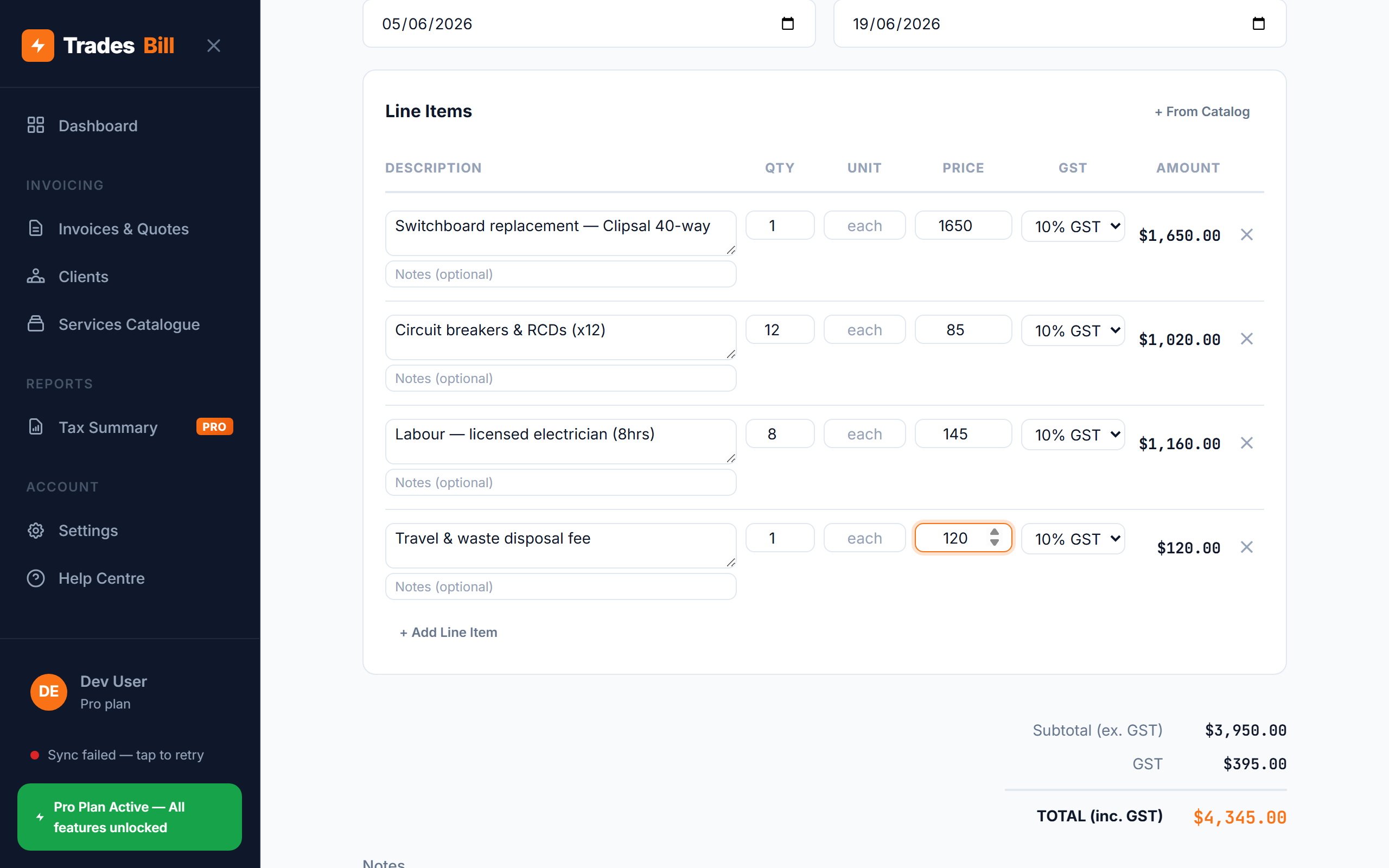
The job breakdown:
| Item | Qty | Unit Price | Total |
|---|---|---|---|
| Switchboard replacement — Clipsal 40-way | 1 | $1,650 | $1,650 |
| Circuit breakers & RCDs (x12) | 12 | $85 | $1,020 |
| Labour — licensed electrician (8hrs) | 8 | $145 | $1,160 |
| Travel & waste disposal fee | 1 | $120 | $120 |
| Subtotal (ex. GST) | $3,950.00 | ||
| GST (10%) | $395.00 | ||
| TOTAL (inc. GST) | $4,345.00 | ||
Dave requires a 50% deposit ($2,172.50) before ordering materials, with the balance due 14 days after completion.
Step 1: Send a Quote before starting work
A Quote protects both Dave and Greenfield. If the scope changes — they find knob-and-tube wiring behind the wall, or want an extra circuit added — the quote is the baseline they negotiate from. Without it, price disagreements happen after the work is done, which is the worst possible time.
In TradesBill, Dave creates a new document and sets the type to Quote. He adds his four line items, sets a 14-day expiry, and sends the PDF link to the property manager. The quote clearly shows the subtotal, 10% GST, and total — everything Greenfield needs to approve the spend internally.
Tip: Always label it "Quote" not "Invoice" before work starts. The ATO distinguishes between them — a Tax Invoice triggers a GST obligation, while a Quote is just an offer to supply. Getting the label right avoids confusion on both sides.
Greenfield approves the quote the same day. Dave books the job for the following Tuesday and orders the Clipsal board and RCDs from his electrical wholesaler.
Step 2: Convert to a Tax Invoice when the work is done
The switchboard upgrade takes Dave and his apprentice the full day. By 4:30pm the board is live, the RCDs are tested, and the compliance certificate is signed. Now it's invoice time.
In TradesBill, Dave opens the saved quote and changes the type from Quote to Tax Invoice. The line items, amounts, and dates carry over — he doesn't retype anything. He hits Save, and the document is now a valid ATO-compliant Tax Invoice with his ABN, the correct "Tax Invoice" label, and a GST breakdown.
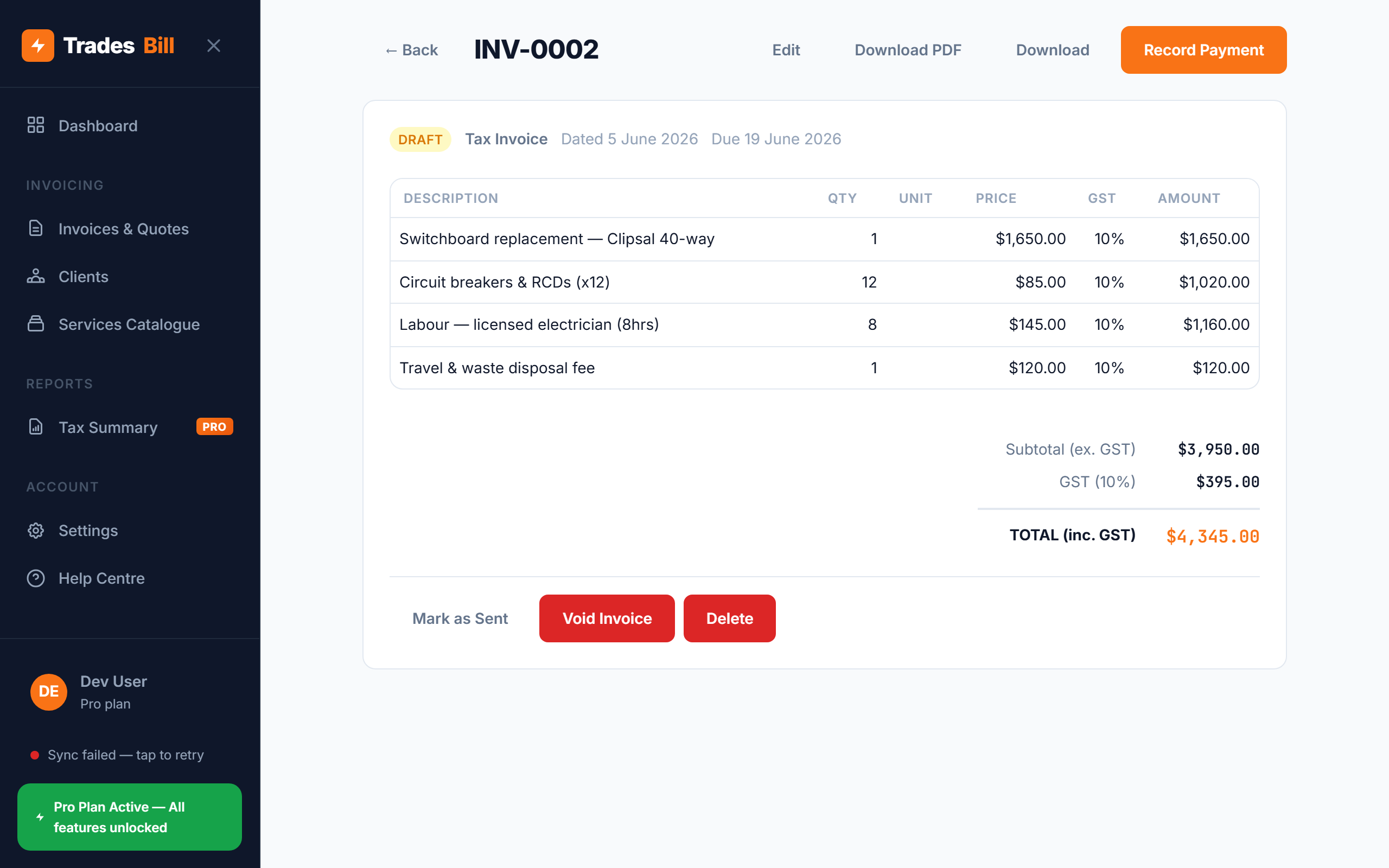
The invoice status is Draft at this point. Dave marks it as Sent after he emails the PDF to Greenfield's accounts team. This matters — TradesBill uses the Sent status to calculate overdue invoices, so if the payment doesn't arrive by the due date, it'll show up as Overdue automatically.
Step 3: Record the deposit and the final payment
Three days later, Greenfield's accounts team transfers the 50% deposit — $2,172.50 via bank transfer. Dave opens the invoice and clicks Record Payment. He enters the amount, selects EFT, adds the bank reference number from the transaction confirmation, and saves.
The invoice status changes from Sent to Partial. This tells Dave — and the system — that money has come in but the job isn't fully settled yet. The outstanding balance ($2,172.50) is tracked automatically.
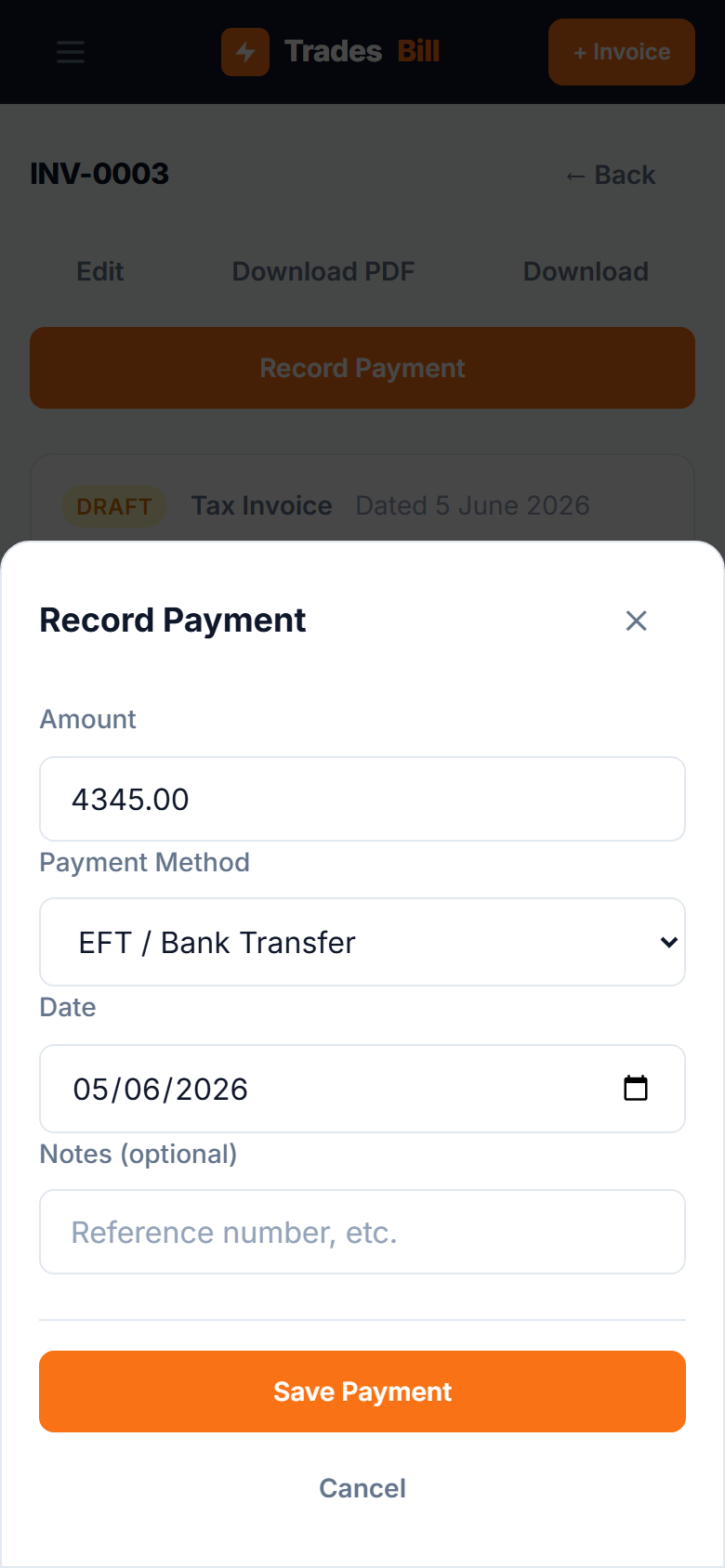
Two weeks later the final payment arrives. Dave records it the same way — $2,172.50, EFT, with the reference. Status flips to Paid. The job is closed.
Why recording payments matters for BAS: TradesBill calculates your GST on sales (1A) using paid invoices only — the cash accounting method the ATO allows for businesses under $10 million. If you don't mark invoices as paid, your 1A figure will be wrong.
Step 4: Pull the BAS Tax Summary at quarter end PRO
At the end of the quarter, Dave opens TradesBill's BAS Tax Summary — a PRO feature available from $9/month. It automatically calculates two numbers he needs for his Business Activity Statement:
- G1 — Total Sales: the total value of all invoices issued in the quarter, including GST. This goes in the G1 box on your BAS.
- 1A — GST on Sales: the GST collected on all paid invoices in the quarter. This is what you remit to the ATO.
For Dave's switchboard job, the contribution to his quarterly figures is: G1 includes $4,345.00, and 1A includes $395.00 of GST collected (since the invoice is fully paid).
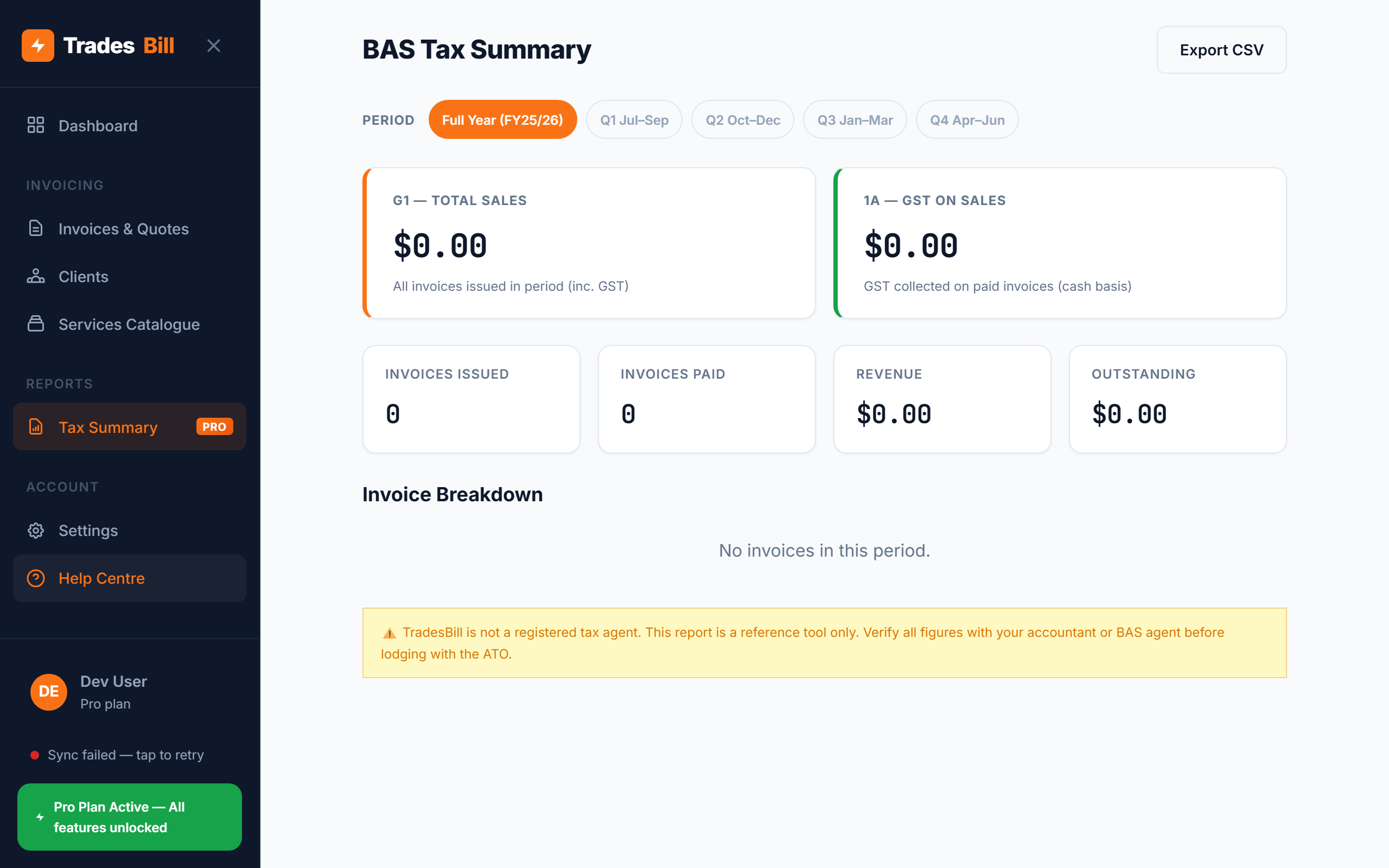
Dave copies these figures into his myGov business portal to lodge his BAS. His accountant verifies the numbers before lodgement — but because Dave's been recording everything in TradesBill through the quarter, there are no surprises.
Tips for keeping your invoicing workflow tight
- Quote before you start — even for small jobs. A quick quote takes two minutes and eliminates the most common cause of payment disputes.
- Require a deposit for material-heavy jobs. If materials cost more than a few hundred dollars, get 30–50% upfront. You shouldn't be financing your client's materials.
- Set payment terms on every invoice. 14 days is standard for trade work. Include it on the document so there's no ambiguity about when payment is due.
- Record payments the same day they arrive. It takes 30 seconds and keeps your outstanding balance accurate. Don't batch them up at month end.
- Check your BAS monthly, not just quarterly. Running the report each month lets you see what's coming before it's due — no cash flow shock when the bill hits.
- Keep the bank reference number. When you record a payment, add the bank reference in the Notes field. It's invaluable if a client ever disputes that they paid.
The workflow in summary
Four steps, every job, no exceptions:
- Quote — before work starts, with all line items and your payment terms.
- Tax Invoice — when work is complete. Change the type, save, send.
- Record payments — deposit when it arrives, final when it clears.
- BAS Summary — pull the G1 and 1A figures at quarter end. Done. PRO
Stick to this and you'll never chase a payment that was already paid, never be surprised by a BAS bill, and never have to reconstruct a quarter's worth of invoices from memory.
Start the workflow today — free
Steps 1–3 (quotes, invoices, payments) are completely free — no credit card, no time limit. The BAS Tax Summary is available on the Pro plan from $9/month.